





MSTSC, RDP, RDS and TermService are not to be confused
The terms are related, but they describe different parts of a remote-access deployment. Confusing them can send troubleshooting in the wrong direction, especially when someone searches for an “MSTSC service” or assumes an MSTSC switch changes the server.
| Term | What it is | Where it runs |
|---|---|---|
| mstsc.exe | Microsoft's classic Remote Desktop Connection client | The Windows client device |
| RDP | The Remote Desktop Protocol that carries display, input and redirected resources | Between the client and remote system |
| RDS | Remote Desktop Services, Microsoft's Windows Server roles for remote sessions, application delivery, gateways and related services | Windows Server infrastructure |
| TermService | The Remote Desktop Services service associated with server-side RDP connections | The Windows host |
What mstsc.exe does
Microsoft documents mstsc.exe as their client used to connect to a Remote Desktop Session Host server or another remote computer. You can open it from Run, Command Prompt, PowerShell or a shortcut, with or without command-line options.
mstsc
mstsc.exe
mstsc /?
mstsc "C:\Connections\Accounting.rdp"
The first two commands open the graphical client. mstsc /? displays the installed client's command syntax. Passing a connection file opens the profile stored in that file.
MSTSC is a client, not a protocol or service
Microsoft's Remote Desktop Protocol documentation describes RDP as the client-server protocol. On the host, the service that administrators normally mean by “MSTSC service” is TermService. The Remote Desktop Services UserMode Port Redirector service, UmRdpService, can also appear during host-side diagnosis.
The following PowerShell command checks those services on a Windows host. It does not check an MSTSC service because no such service exists.
Get-Service TermService, UmRdpService
MSTSC is also a remote-access client, not an attended helpdesk workflow. If a technician needs to view or control a user's own device for support and troubleshooting, use remote support software designed for consent, technician workflows and session handling.
Windows 10, Windows 11 and older Windows releases
Microsoft's current MSTSC command reference lists Windows 10, Windows 11 and Windows Server 2016 through 2025 among the applicable releases. Windows 8 may still appear in historical searches and older environments, but it is not a current deployment target in Microsoft's applicability list. Check mstsc /? on the actual client because available behaviour can also depend on its Windows build and policies.
Reference table of MSTSC command-line switches
The following table follows Microsoft's current MSTSC command contract. It intentionally excludes undocumented switches, including /migrate which does not appear in the current Microsoft command reference.
| Switch | Purpose | Important constraint | Example |
|---|---|---|---|
| <connectionfile> | Opens a saved .rdp connection file | Quote paths containing spaces | mstsc "C:\Connections\Sales.rdp" |
| /v:<server>[:<port>] | Specifies the remote host and optional listener port | It selects a destination but does not enable RDP or change the host port | mstsc /v:server01 |
| /g:<gateway> | Specifies an RD Gateway | Microsoft documents it as being read when /v supplies the destination | mstsc /v:server01 /g:gateway.example.com |
| /admin | Requests a session for administering a server | It does not grant administrator rights or bypass authentication and licensing | mstsc /v:server01 /admin |
| /f or /fullscreen | Starts the session in full-screen mode | Use Ctrl+Alt+Break to switch display mode during a session | mstsc /v:server01 /f |
| /w:<width> | Sets the initial window width | Usually paired with /h | mstsc /v:server01 /w:1920 /h:1080 |
| /h:<height> | Sets the initial window height | Usually paired with /w | mstsc /v:server01 /w:1920 /h:1080 |
| /public | Runs Remote Desktop Connection in public mode | Prevents password and bitmap caching for the connection, but is not a complete shared-device security policy | mstsc /v:server01 /public |
| /span | Spans one remote desktop across compatible local monitors | Microsoft requires horizontally aligned monitors with the same resolution | mstsc /v:server01 /span |
| /multimon | Uses the client monitor arrangement in the remote session | Host capabilities and policy still apply | mstsc /v:server01 /multimon |
| /l | Lists local monitors and their IDs | Use the IDs with the selectedmonitors property | mstsc /l |
| /edit <connectionfile> | Opens a saved connection file for editing | The path must identify an existing .rdp file | mstsc /edit "C:\Connections\Sales.rdp" |
| /restrictedAdmin | Uses Restricted Admin mode to avoid sending reusable credentials to the remote host | Implies /admin and can affect access to other network resources from the remote session | mstsc /v:server01 /restrictedAdmin |
| /remoteGuard | Uses Windows Defender Remote Credential Guard | Authentication requests are redirected to the client; compatibility and policy prerequisites apply | mstsc /v:server01 /remoteGuard |
| /prompt | Forces a credential prompt | Useful when testing whether stored credentials are causing a problem | mstsc /v:server01 /prompt |
| /shadow:<sessionID> | Shadows an existing RDS session | Requires a valid session ID, authorization and supporting policy | mstsc /shadow:3 |
| /control | Requests control while shadowing | Used with /shadow | mstsc /shadow:3 /control |
| /noConsentPrompt | Requests shadowing without asking the session user for consent | Requires authorization and policy support; use only within an audited administrative process | mstsc /shadow:3 /control /noConsentPrompt |
| /? | Displays command help | Useful for checking the syntax available on the installed Windows build | mstsc /? |
Switches which can be combined
Start with the destination, then add only the behaviour the connection needs. Readable commands are easier to troubleshoot than shortcuts containing several unnecessary options.
mstsc /v:server01 /f
mstsc /v:server01 /w:1920 /h:1080
mstsc /v:server01.internal /g:gateway.example.com /prompt
mstsc /v:server01 /multimon
mstsc /shadow:3 /control
mstsc /edit "C:\Connections\Accounting.rdp"
These examples use internal server names. If a connection crosses the internet, the destination's RDP listener should not be published directly on a public address.
What /admin does not do
/admin requests an administrative server session. It does not make the connecting account an administrator, create an additional right to connect, bypass Network Level Authentication or override host policy.
Licensing boundary: /admin, shadowing, MSTSC commands and saved files do not remove Microsoft licensing obligations. Microsoft states that RDS CALs are required in applicable RDS environments. Windows Server, RDS CAL, Office and Microsoft 365 licensing depend on the operating system, deployment model, users or devices and application use. Validate your configuration with Microsoft or a qualified licensing partner.
Restricted Admin and Remote Guard
Restricted Admin and Remote Credential Guard are credential-protection modes, not complete access-security architectures. Microsoft documents them as alternatives in the MSTSC syntax, so do not specify both for the same connection.
| Mode | Credential behavior | Operational consideration |
|---|---|---|
| Restricted Admin | Avoids transmitting reusable credentials to the remote host | Implies /admin; onward access from the remote session can fail because the user's credentials are not available there |
| Remote Credential Guard | Redirects authentication requests back to the client | Requires compatible Windows, domain and policy configuration |
Neither mode replaces patching, least privilege, MFA, segmentation, lockout controls or monitoring. In addition, test compatibility with the services the administrator needs to reach from the remote session.
Practical MSTSC commands for common tasks
Start a full-screen or fixed-size session
Use /f or /fullscreen for full screen. Use /w and /h when a predictable window size is more useful.
mstsc /v:server01 /f
mstsc /v:server01 /w:1920 /h:1080
Microsoft documents a range of 200 to 8192 pixels for the corresponding desktopwidth and desktopheight RDP properties. That documented property range should not be treated as a guarantee that every resolution is practical on every client, host or monitor arrangement.
Open or edit an RDP file
Passing the file path opens the connection. Adding /edit opens its settings in Remote Desktop Connection rather than starting the session immediately.
mstsc "C:\Connections\Accounting Department.rdp"
mstsc /edit "C:\Connections\Accounting Department.rdp"
Connect through an RD Gateway
/v identifies the destination, while /g identifies the RD Gateway used to reach it. Microsoft documents /g as being read when /v is also supplied.
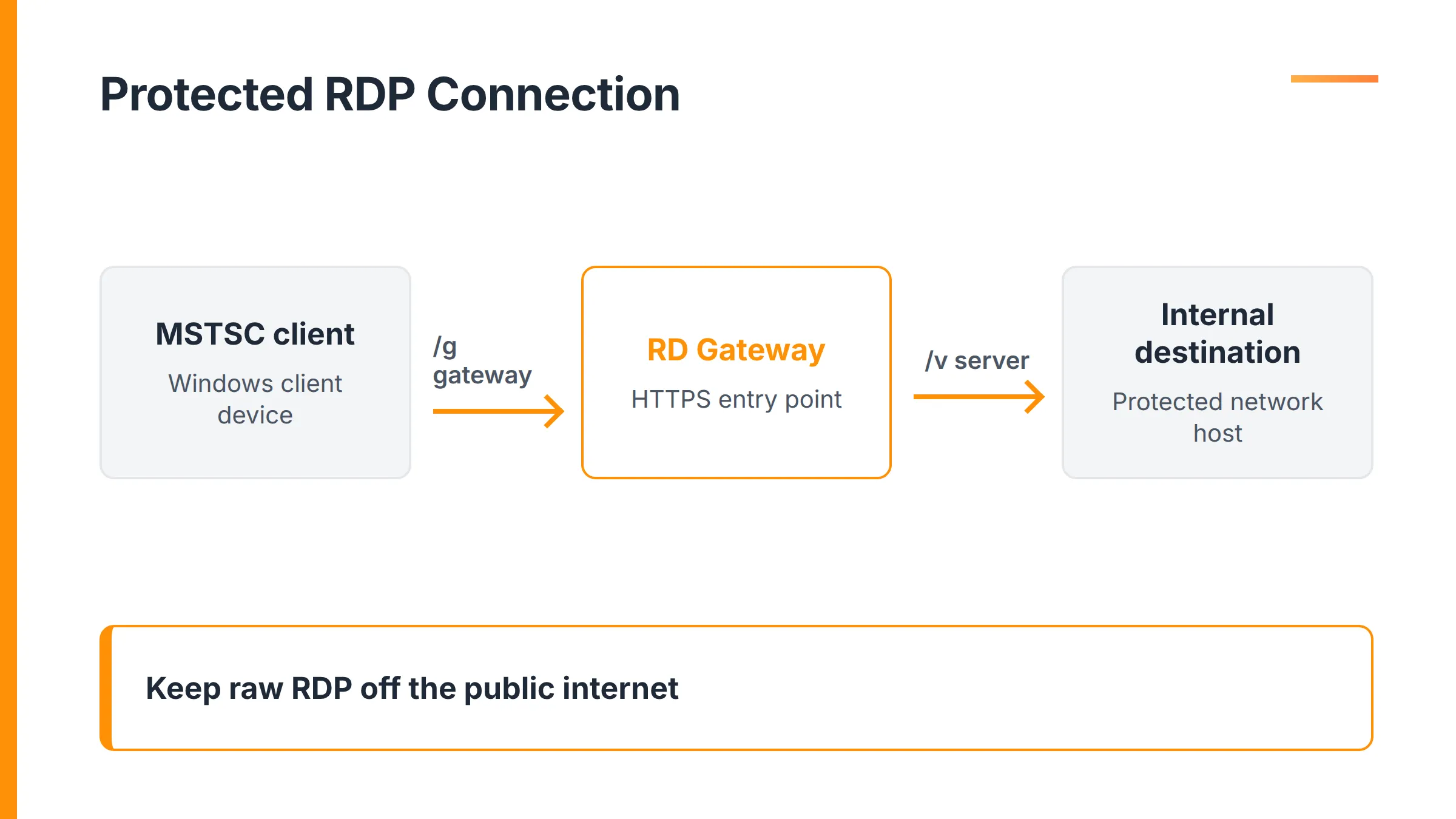
mstsc /v:server01.internal /g:gateway.example.com /prompt
Internet-access rule: If the destination must be reached across the internet, use a protected gateway, HTTPS entry point, reverse proxy or private access path instead of forwarding the destination's RDP listener. A syntactically correct /g or /v command proves only that the client has connection instructions. It does not prove that the access path is securely designed.
Shadow an existing session
Shadowing requires the ID of an existing session. /control requests interaction with that session, while /noConsentPrompt requests that MSTSC not ask the session user for consent.
mstsc /shadow:3 /control
Authorization, policy, session state and auditing still apply. Shadowing is an administrative RDS capability, not a substitute for an attended remote-support product with technician queues, user-facing consent and helpdesk records.
Multiple monitors: /multimon, /span, /l and selectedmonitors
The four options solve different problems. Choose the mode before adding monitor settings to a reusable profile.
| Option | Behavior | Requirement or use case |
|---|---|---|
| /multimon | Creates a monitor-aware remote session that follows the local arrangement | Use when applications should recognize separate remote monitors |
| /span | Creates one oversized desktop spanning monitors | Requires horizontally aligned monitors with the same resolution |
| /l | Lists monitor IDs and geometry | Run before selecting a subset of monitors |
| selectedmonitors:s: | Selects specific monitor IDs in an RDP file | Requires multi-monitor mode and a compatible monitor layout |
Use /multimon for a monitor-aware remote session
/multimon reproduces the client-side monitor arrangement in the remote session rather than presenting one oversized surface. The remote environment can then treat displays as separate monitors, subject to host capabilities and policy.
mstsc /v:server01 /multimon
Use /span only for a compatible horizontal layout
/span is not an alias for /multimon. Microsoft requires the monitors to use the same resolution and align horizontally. If the displays have different resolutions or a vertical offset, use multi-monitor mode instead.
Find monitor IDs and select specific monitors
First list the monitor IDs that MSTSC sees. Then place the required IDs in a saved RDP file.
mstsc /l
use multimon:i:1
selectedmonitors:s:0,2
Microsoft documents additional layout constraints for selected monitors, including the need for the chosen set to form a valid rectangular arrangement. Test the profile on the intended workstation because monitor numbering can change when displays, docks or graphics settings change.
Remote Desktop keyboard shortcuts
Use Ctrl+Alt+End to send the remote equivalent of Ctrl+Alt+Del. Windows intercepts Ctrl+Alt+Del locally, which is why MSTSC uses a different combination for the remote session.
| Local key combination | Remote action | Limitation |
|---|---|---|
| Ctrl+Alt+End | Remote equivalent of Ctrl+Alt+Del | Nested sessions and RemoteApp can change where the command is handled |
| Ctrl+Alt+Break | Switches between windowed and full-screen display | Some keyboards label the key Pause or require an Fn combination |
| Alt+Page Up | Switches remote applications from left to right | Remote counterpart to Alt+Tab |
| Alt+Page Down | Switches remote applications from right to left | Remote counterpart to reverse application switching |
| Alt+Home | Opens the remote Start menu | Applies to the remote desktop session |
| Ctrl+Alt+Plus | Copies an image of the entire remote session window to the clipboard | Microsoft documents the plus key on the numeric keypad |
| Ctrl+Alt+Minus | Copies an image of the active remote window to the clipboard | Microsoft documents the minus key on the numeric keypad |
| Ctrl+Alt+Home | Activates the connection bar in full-screen mode | Relevant when the connection bar is hidden |
Keyboard behaviour in windowed, full-screen, nested and RemoteApp sessions
The keyboardhook RDP property controls whether Windows key combinations apply locally, remotely or to the remote session only in full-screen mode. Nested sessions add another possible destination for a shortcut, and RemoteApp does not reproduce every full-desktop keyboard behavior.
If a key combination reaches the wrong computer, first test a single non-nested session and review keyboardhook. Do not weaken authentication or host security settings to solve an input-routing problem.
Default.rdp and reusable .rdp files
MSTSC stores remembered per-user client preferences in a hidden file named Default.rdp. Separately named RDP files can be saved elsewhere for specific destinations, gateways, monitor layouts and redirection rules.
%USERPROFILE%\Documents\Default.rdp
What Default.rdp is
Microsoft documents Default.rdp as a hidden file created or updated by Remote Desktop Connection in the user's Documents folder. It affects that user's client preferences. Renaming or resetting it does not enable Remote Desktop, change a listener or alter policy on the remote host.
To test whether stale client settings are involved:
- Close all Remote Desktop Connection windows.
- Back up or rename
Default.rdp. - Open MSTSC again so it can recreate remembered client preferences.
- Retest the connection before copying old settings into the new file.
RDP file syntax
An RDP file is text-based configuration. A typical line follows property:type:value, where i identifies an integer and s identifies a string.
full address:s:server01.internal
screen mode id:i:2
use multimon:i:1
redirectclipboard:i:1
Do not assume that every property documented by Microsoft works identically with every Remote PC, RDS, Azure Virtual Desktop or TSplus Remote Access connection. Microsoft's supported RDP properties page covers several RDP products and assigns applicability by property. The client version, target type, server policy and connection method can all matter.
How switches, file settings, GUI choices and policy interact
Microsoft does not publish one universal precedence hierarchy covering every command switch, RDP file property, graphical setting, Group Policy and host policy. Avoid setting the same behaviour differently in several places.
Testing rule: When a conflict must be investigated, use a disposable profile and record the Windows build, client version, target type and effective policies. Change only one value at a time. A client setting cannot override a host or collection policy which prohibits the requested behaviour.
RDP file parameter reference tables
The tables below cover properties which are especially useful with MSTSC. Values reflect Microsoft's supported RDP properties documentation, but Microsoft's applicability labels remain authoritative for each connection product. A property being documented for one Microsoft RDP product does not establish compatibility with every other target.
Destination, identity and authentication properties
| Property and type | Accepted value | Purpose | Security or applicability note |
|---|---|---|---|
| full address:s: | Host name or address, optionally with a port | Identifies the primary destination | Verify the identity before distributing the file |
| alternate full address:s: | Alternate host name or address | Provides an alternate connection address where supported | Applicability depends on the RDP product |
| username:s: | User name in the required account format | Prepopulates the account name | Do not mistake a stored name for secure credential storage |
| domain:s: | Domain name | Prepopulates the authentication domain | Account format and identity provider still control sign-in |
| prompt for credentials:i: | 0 or 1 | Controls whether the user is prompted for credentials | Policy can still require a prompt |
| promptcredentialonce:i: | 0 or 1 | Controls whether gateway and destination credentials are requested once where supported | Gateway and target authentication methods must be compatible |
| authentication level:i: | 0, 1 or 2 | Selects whether failed server authentication is ignored, blocks the connection or produces a warning | Use a strict setting appropriate to the managed environment; do not suppress identity warnings routinely |
| enablecredsspsupport:i: | 0 or 1 | Controls Credential Security Support Provider use where applicable | Changing it affects authentication and Network Level Authentication compatibility |
| negotiate security layer:i: | 0 or 1 | Controls security-layer negotiation where supported | Do not disable negotiation as a routine troubleshooting step |
Reusable files should not contain embedded plaintext passwords. Use approved credential storage and authentication controls rather than distributing secrets inside connection profiles.
Display and monitor properties
| Property and type | Accepted value or range | Purpose | Counterpart or note |
|---|---|---|---|
| screen mode id:i: | 1 windowed, 2 full screen | Sets the initial display mode | Related to /f and /fullscreen |
| desktopwidth:i: | 200 to 8192 pixels | Sets the remote desktop width | Related to /w |
| desktopheight:i: | 200 to 8192 pixels | Sets the remote desktop height | Related to /h |
| session bpp:i: | 15, 16, 24 or 32 | Sets session color depth | Host support and policy can constrain it |
| use multimon:i: | 0 or 1 | Enables a monitor-aware multi-monitor session | Related to /multimon |
| selectedmonitors:s: | Comma-separated monitor IDs | Selects a subset of local monitors | Use mstsc /l to find IDs; requires multi-monitor mode |
| span monitors:i: | 0 or 1 | Spans one desktop across monitors | Related to /span; same-resolution horizontal layout required |
| smart sizing:i: | 0 or 1 | Scales the displayed remote desktop to the client window | Scaling does not change the remote resolution dynamically |
| dynamic resolution:i: | 0 or 1 | Adjusts remote resolution when the client window changes size | Support depends on client and target |
| desktopscalefactor:i: | Microsoft-documented scaling percentage | Sets desktop scale where applicable | Check the property's product applicability before deployment |
| devicescalefactor:i: | Microsoft-documented device scale value | Controls device-related scaling where applicable | Not a universal MSTSC setting across all target types |
Keyboard, audio and local-resource redirection
| Property and type | Accepted value | Purpose | Policy consideration |
|---|---|---|---|
| keyboardhook:i: | 0 local, 1 remote, 2 remote in full screen | Controls where Windows key combinations are applied | Nested and RemoteApp sessions can behave differently |
| audiomode:i: | 0 play locally, 1 play remotely, 2 disable | Controls audio playback | Host policy can restrict audio redirection |
| audiocapturemode:i: | 0 or 1 | Disables or enables microphone capture redirection | Enable only when the workflow needs it |
| redirectclipboard:i: | 0 or 1 | Controls clipboard redirection | Can move data in either direction; host policy can block it |
| redirectprinters:i: | 0 or 1 | Controls printer redirection | Driver and host policy requirements still apply |
| redirectdrives:i: | 0 or 1 | Controls broad drive redirection behavior | Limit access when users do not need local file transfer |
| drivestoredirect:s: | Specific drive list, * for all, or supported dynamic-drive value | Selects the drives made available remotely | Use the narrowest list that supports the task |
| redirectcomports:i: | 0 or 1 | Controls serial-port redirection | Availability depends on client, host and policy |
| redirectsmartcards:i: | 0 or 1 | Controls smart-card redirection | Authentication architecture and policy determine whether it works |
Common mistake: Setting a redirection property to 1 only requests the feature from the client side. It does not prove that the host, RDS collection or Group Policy permits it. Device, USB and WebAuthn properties also have connection-specific applicability, so check the current Microsoft property page before adding them to an organizational profile.
Gateway properties
| Property and type | Accepted value | Purpose | Operational note |
|---|---|---|---|
| gatewayhostname:s: | Gateway host name | Identifies the RD Gateway | The name should match the gateway certificate |
| gatewayusagemethod:i: | Microsoft-documented codes 0 through 4 | Selects no gateway, required use, conditional use or configured default behavior | Use the MSTSC gateway interface to generate the intended value when possible |
| gatewaycredentialssource:i: | Documented codes for password, smart card, later selection or supported web authentication | Selects the gateway credential source | Availability depends on gateway authentication configuration |
| gatewayprofileusagemethod:i: | 0 or 1 | Controls whether default or explicit gateway profile settings are used | Preserve GUI-generated values unless the deployment documentation specifies otherwise |
| promptcredentialonce:i: | 0 or 1 | Controls reuse of one prompt for gateway and destination authentication | Does not merge incompatible identity systems |
A gateway profile should still identify an internal destination. Adding a gateway hostname while leaving the destination exposed as a public RDP listener defeats the purpose of using the protected entry path.
Performance and connection-experience properties
| Property and type | Accepted value | Purpose | Guidance |
|---|---|---|---|
| networkautodetect:i: | 0 or 1 | Enables automatic network detection | Usually preferable to fixed assumptions about the connection |
| bandwidthautodetect:i: | 0 or 1 | Enables bandwidth detection | Requires compatible network detection behavior |
| connection type:i: | 1 through 7 | Classifies the connection from low-speed through LAN or automatic detection | Automatic detection makes manual tuning secondary in many environments |
| compression:i: | 0 or 1 | Controls RDP data compression | Do not disable it based on obsolete tuning advice |
| disable wallpaper:i: | 0 or 1 | Controls whether desktop wallpaper is suppressed | Can reduce unnecessary visual data |
| allow font smoothing:i: | 0 or 1 | Controls font smoothing | Balances text appearance and connection cost |
| allow desktop composition:i: | 0 or 1 | Controls desktop composition where supported | Applicability depends on client and target |
RemoteApp properties
An RDP file can request an individually published application, but the file cannot publish that application by itself. The server-side environment must publish the program and authorize the user.
| Property and type | Accepted value | Purpose | Requirement |
|---|---|---|---|
| remoteapplicationmode:i: | 0 or 1 | Enables RemoteApp mode | A compatible publishing environment is required |
| remoteapplicationprogram:s: | Published application identifier | Identifies the program to start | Must match a server-published application |
| remoteapplicationname:s: | Display name | Provides the application name shown to the user | Does not grant access |
| remoteapplicationcmdline:s: | Supported command-line parameters | Passes permitted arguments to the application | Server policy and application configuration can restrict arguments |
Treat .rdp files as configuration, not harmless shortcuts
An RDP file can direct users to a destination, request gateway behaviour and enable transfer paths such as the clipboard, drives, printers or smart cards. It is thus operational configuration with security consequences, not merely a desktop icon.
- Vet the destination and gateway before approving a file.
- Review clipboard, drive, printer, smart-card, audio and credential-related settings.
- Sign organizational files when the environment requires publisher validation.
- Use Group Policy to define how unsigned, signed and untrusted files are handled.
Signed files and trusted publishers
Microsoft's RDP file security guidance, dated July 14, 2026, describes three Group Policy areas controlling how Remote Desktop Connection handles RDP files: rules for unsigned files, rules for signed files and the explicitly trusted publisher list. The guidance also covers SHA-2 certificate thumbprints and security-dialog changes introduced in 2026.
Microsoft's position for high-security environments is that users can be limited to RDP files signed by explicitly trusted publishers, with other files blocked.
The exact policy should match the organization's risk level rather than relying on every user to interpret a warning correctly.
Ports, custom ports and port forwarding
The port in an MSTSC command tells the client where to connect. It does not change the server's listener, firewall, certificate, gateway or network address translation configuration.
| Port and transport | Role | Connection context |
|---|---|---|
| TCP and UDP 3389 | Standard direct RDP port | Client to host, commonly on an internal or protected network |
| TCP 443 | External HTTPS traffic to RD Gateway | Client to gateway |
| UDP 3391 | RDP over UDP through RD Gateway | Client to gateway where enabled |
These RDP ports come from Microsoft's February 2026 RDS port reference. They are network facts, therefore regarding port and network security recommendations, they warrant certain indispensable protections, for instance to avoid exposing TCP or UDP 3389 publicly.
Connect to a nondefault port
Append the port to the destination after a colon. This works only when the host is already listening on that port and the protected network path permits it.
mstsc /v:server01.internal:3390
MSTSC cannot change the host's listening port
Changing the listener is a coordinated host-side operation involving Windows configuration, Remote Desktop Services, firewall rules and any upstream network controls. Although RDS can use another port, Microsoft does not recommend changing the port as the normal approach.
A custom port may reduce automated noise, but it is not a security control by itself. Use a dedicated port-change guide if you must alter the listener, yet plan validation and rollback rather than treating the client command as the change procedure.
Do not forward a raw RDP port to the public internet
Decision rule: If access is internal or already protected by a private network, connect to the internal host and listener. If access crosses the internet, use HTTPS, an RD Gateway, a reverse proxy or another protected entry point with MFA and access controls. Do not publish port 3389, or a custom RDP listener port, directly to the internet.
RDP is not secure by design. Risk increases when an RDP listener is publicly exposed, credentials are weak or reused, systems are unpatched and access attempts are not monitored. In their November 20, 2024 BianLian update, CISA, the FBI and the Australian Signals Directorate advised organizations strictly limit RDP, close unused ports, enforce lockouts, use phishing-resistant MFA and log access attempts.
MSTSC not working: isolate the failing layer
A failed MSTSC connection can originate in the client profile, DNS, network path, host listener, authentication, authorization, gateway or display configuration. Test those layers in order instead of weakening security settings until the error changes.
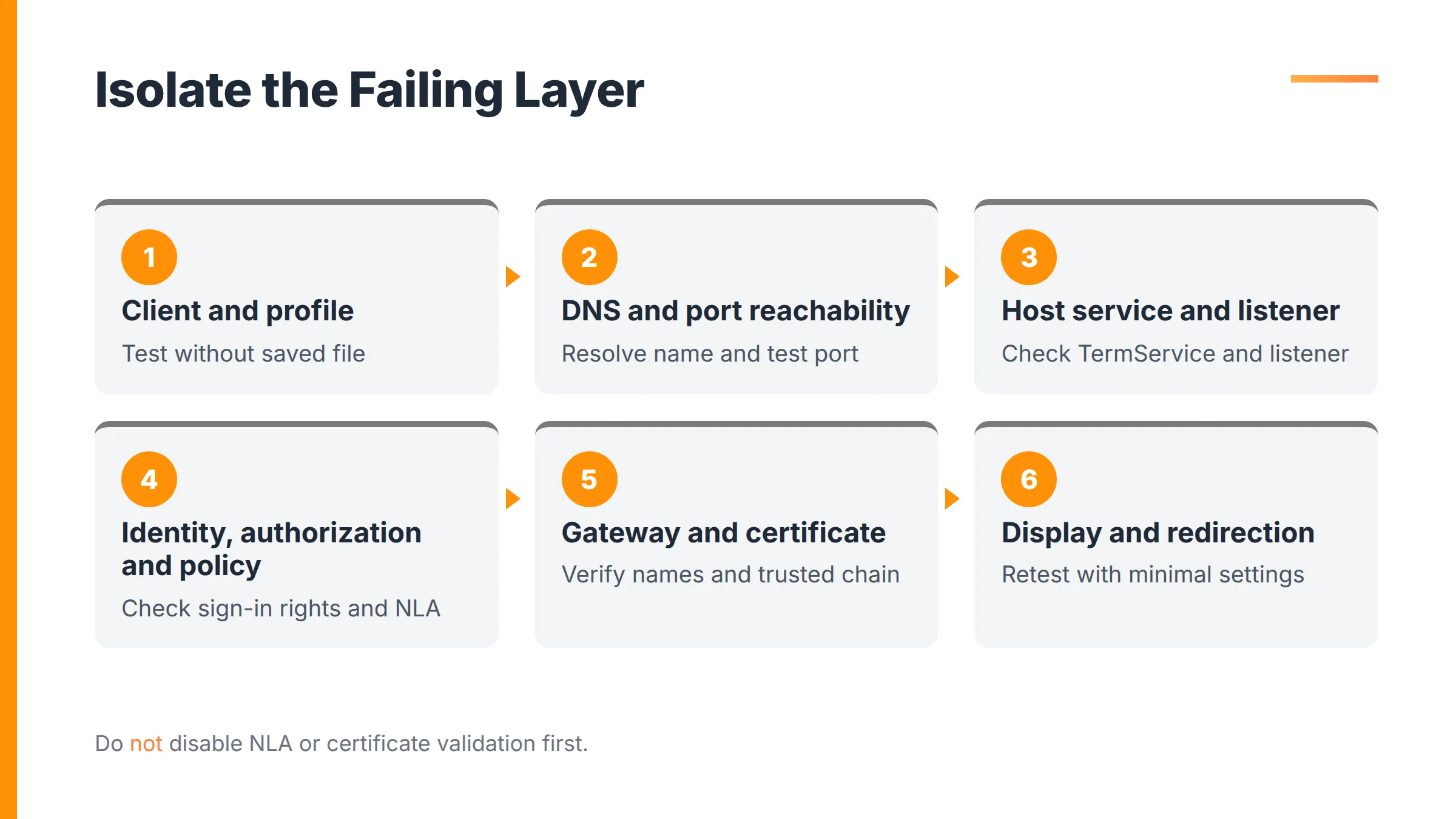
1. Confirm the client and profile
Run mstsc /? to confirm that the client launches and to inspect its available syntax. Test the destination without the saved RDP file. If the clean connection works, compare the file with a newly created profile or test with a reset Default.rdp.
2. Confirm DNS and port reachability
Resolve the destination name, then test the listener port from the client network. Use the actual internal host and configured port.
Resolve-DnsName server01.internal
Test-NetConnection server01.internal -Port 3389
A failed DNS lookup is different from a resolved host with a blocked port. Indeed, a successful port test only proves basic reachability. It does not prove that the account is authorized or that authentication will succeed.
3. Check the host service and listener
On the host, confirm that Remote Desktop is enabled and inspect the relevant services. Microsoft troubleshooting documentation identifies TermService and UmRdpService as host-side components to check.
Get-Service TermService, UmRdpService
Listener state, port conflicts, firewall rules and host configuration are not controlled by the MSTSC client. Investigate those items directly on the host or through the applicable server-management process.
4. Check identity, authorization, NLA and policy
A reachable listener can still reject a connection. Check the account format, password state, account lockout, Remote Desktop sign-in rights, group membership, Network Level Authentication requirements and effective Group Policy.
Do not use /admin as a response to rejected credentials. It changes the requested session type, not the identity or permissions of the user.
5. Check gateway and certificate errors separately
Gateway authentication, gateway reachability, gateway-to-target reachability and target authentication are separate stages. A certificate warning is also an identity problem, not generic evidence that “RDP is down.” Confirm the requested name matches the certificate and the issuing chain is trusted.
6. Remove display and redirection variables
Retest with one monitor and minimal local-resource redirection. If that works, add monitor, clipboard, drive, printer and audio settings back one at a time, testing in between.
Do not disable NLA, certificate validation or encryption as a routine first response. A dedicated Remote Desktop troubleshooting guide can take the diagnosis further when these bounded tests identify the failing layer but not its cause.
Linux clients, connection managers and MSTSC alternatives
Choose an alternative based on the actual job. A Linux RDP implementation, a Windows connection manager, centralized application publishing and a remote-support product each solve different issues.
| Need | Suitable category | Example and main limit |
|---|---|---|
| One traditional Windows RDP connection | Built-in Windows client | MSTSC; Windows-specific and not a publishing system |
| Many saved Windows RDP endpoints | Connection manager | Microsoft Sysinternals RDCMan; organizes connections but does not create an access architecture |
| RDP from Linux | Cross-platform RDP implementation | FreeRDP; syntax must be checked against the installed version |
| Assigned Windows applications or desktops | Centralized remote-access delivery | An application-publishing system; requires server-side deployment and authorization |
| Helpdesk control of a user's device | Remote-support software | Designed for technician and support workflows rather than central application delivery |
There is no Linux version of mstsc.exe
mstsc.exe is a Windows executable. FreeRDP is a maintained open-source, cross-platform RDP implementation, and xfreerdp is a common Linux client associated with the project.
FreeRDP command syntax can change between major versions. Check the installed client's --help output and the current FreeRDP documentation instead of copying an old command without verification.
Use Remote Desktop Connection Manager for many saved Windows connections
Microsoft Sysinternals positions Remote Desktop Connection Manager, or RDCMan, as a manager for many Remote Desktop connections. Microsoft documented RDCMan version 3.22 on October 15, 2026.
RDCMan supports server groups, inherited settings, thumbnails, credential stores and actions applied to groups of connections. It organizes administrative RDP sessions, but it does not publish applications, replace an RD Gateway, provide a remote-support workflow or determine the security of the access path.
Choose an alternative according to its intended job
- Use MSTSC for an individual traditional RDP connection from Windows.
- Use RDCMan when a Windows administrator needs to organize many RDP endpoints.
- Use a maintained RDP client such as FreeRDP on Linux.
- Use remote-support software for attended or unattended helpdesk control.
- Use an application-publishing system when users need centrally assigned Windows applications or desktops.
Using MSTSC with TSplus Remote Access
TSplus Remote Access can deliver assigned Windows applications or full desktops through Microsoft MSTSC, another RDP-compatible client, a generated client or browser access. MSTSC is one supported connection method, not the entire product architecture.
MSTSC can be one connection method
With the documented MSTSC method, users connect through a standard Remote Desktop window to resources delivered by TSplus Remote Access. The Universal Printer is not supported through this MSTSC connection method.
Browser access is a separate connection experience and requires TSplus Remote Access Web Mobile edition or above. Generated clients are another option and can support documented monitor selection. Compatibility should be verified for the chosen connection type rather than assuming every Microsoft RDP property has been validated with TSplus Remote Access.
When centralized publishing is more useful than more .rdp files
Keep MSTSC when the requirement is a straightforward RDP client for a known endpoint. Consider TSplus Remote Access when the actual task is to publish and assign Windows applications or desktops centrally instead of maintaining isolated RDP files for every user and server.
Many deployments can use one server. Gateway, farm and load-balancing capabilities simply require TSplus Remote Access Enterprise edition, and a farm is an option rather than a prerequisite. TSplus Remote Access is not VDI and does not host the customer's infrastructure.
If your users need centrally assigned Windows applications or desktops rather than a growing collection of individual RDP files, compare the TSplus Remote Access editions and connection methods.
The TSplus 2FA limitation with MSTSC
Connection-method limitation: TSplus two-factor authentication is a paid add-on requiring TSplus Remote Access, either Web Mobile or Enterprise edition. It does not work with Microsoft mstsc.exe. Direct RDP connections are denied for users enabled for TSplus 2FA, so those users must connect through the supported web portal or a compatible generated client.
MFA should be a baseline for remote and administrative access, but it is one layer among others. It must indeed be combined with patching, lockout, brute-force protection, least privilege, segmentation and monitoring.
A bounded security and licensing checklist
While MSTSC controls a client connection, its switches and saved settings cannot secure or license the deployment as a whole. Thus, before putting a connection into production, check the surrounding architecture:
- Keep raw RDP listeners off the public internet.
- Use a gateway, HTTPS entry point, reverse proxy or protected private path.
- Use valid certificates for web and gateway entry points.
- Require MFA through a connection method that supports it.
- Enforce least privilege, account lockout and RDP brute-force protection.
- Restrict source IP addresses, countries or trusted devices where the user base allows it.
- Disable clipboard, drive, printer and device redirection that the workflow does not need.
- Patch Windows, remote-access software and security tools.
- Use TSplus Server Monitoring to monitor active sessions and server health.
- Segment the network and disable unused ports and services.
- Separate administrative accounts from everyday user accounts.
- Back up access configurations and test restoration.
- Validate Windows Server, RDS CAL, Office and Microsoft 365 licensing with Microsoft or a qualified licensing partner.
In conclusion, MSTSC is but one client in the access path. A correct command or RDP file can establish a connection, but does not establish whether the deployment is secure, appropriately authorized or properly licensed. With the above reference tables and tips, navigating MSTSC should be a clearer.
You can start a free 15-day trial of TSplus Remote Access to test application and desktop delivery on your own Windows infrastructure, then validate the required Microsoft licensing for your configuration.


